你是否遇到过这样的场景:需要定时更新界面数据、实现倒计时功能,或者创建自动保存机制?作为C#开发者,这些需求在WinForms开发中几乎每天都会碰到。今天我们就来深入探讨System.Windows.Forms.Timer这个"小而美"的控件,让你彻底掌握定时任务的开发技巧。
本文将通过实战案例,教你如何用Timer控件解决常见的定时任务问题,避开开发中的常见陷阱,让你的应用更加专业和稳定。
🎯 Timer控件核心原理解析
在深入实战之前,我们先理解Timer的核心机制。WinForms中的Timer并不是"真正"的多线程定时器,而是基于Windows消息循环的组件。
🔧 三大核心属性
- • Enabled:控制定时器启停状态(true/false)
- • Interval:时间间隔,单位毫秒,最小值通常为15-55ms
⚡ 核心事件与方法
💡 实战应用1:打造专业数字时钟
这是Timer最经典的应用场景。让我们创建一个高颜值的实时时钟:
using Timer = System.Windows.Forms.Timer;

namespace AppWinformTimer
{
    public partial class FrmClock : Form
    {
        private Label timeLabel;
        private Timer clockTimer;
        public FrmClock()
        {
            InitializeComponent();
            InitializeUI();
            SetupTimer();
        }
        private void InitializeUI()
        {
            this.Text = "专业数字时钟";
            this.Size = new Size(400, 200);
            this.StartPosition = FormStartPosition.CenterScreen;

            timeLabel = new Label
            {
                Dock = DockStyle.Fill,
                TextAlign = ContentAlignment.MiddleCenter,
                Font = new Font("Microsoft YaHei", 28F, FontStyle.Bold),
                ForeColor = Color.DodgerBlue,
                BackColor = Color.Black
            };

            this.Controls.Add(timeLabel);
        }

        private void SetupTimer()
        {
            clockTimer = new Timer
            {
                Interval = 1000// 1秒更新一次
            };
            clockTimer.Tick += ClockTimer_Tick;
            clockTimer.Start();

            // 立即显示当前时间
            UpdateTimeDisplay();
        }

        private void ClockTimer_Tick(object sender, EventArgs e)
        {
            UpdateTimeDisplay();
        }

        private void UpdateTimeDisplay()
        {
            timeLabel.Text = DateTime.Now.ToString("yyyy-MM-dd HH:mm:ss");
        }

        protected override void OnFormClosed(FormClosedEventArgs e)
        {
            // 🚨 重要:记得释放资源
            clockTimer?.Dispose();
            base.OnFormClosed(e);
        }
    }
}
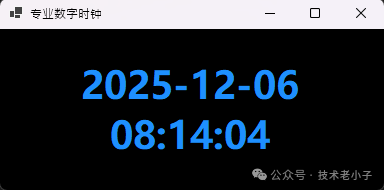
💡 实战技巧:
- • 窗体关闭时主动释放Timer资源,避免内存泄漏
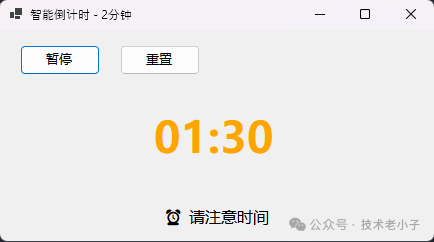
🎯 实战应用2:智能倒计时器
倒计时功能在很多场景都会用到,比如考试系统、番茄工作法计时器等:
using System;
using System.Collections.Generic;
using System.ComponentModel;
using System.Data;
using System.Drawing;
using System.Linq;
using System.Media;
using System.Text;
using System.Threading.Tasks;
using System.Windows.Forms;
using Timer = System.Windows.Forms.Timer;

namespace AppWinformTimer
{
    public partial class FrmCountdown : Form
    {
        private TimeSpan countdown =new TimeSpan(0,2,0);
        private Label countdownLabel;
        private Label statusLabel;
        private Timer countdownTimer;
        private TimeSpan remainingTime;
        private readonly TimeSpan initialTime;

        public FrmCountdown()
        {
            InitializeComponent();
            initialTime = countdown;
            remainingTime = countdown;
            InitializeUI();
            SetupTimer();
        }

        private void InitializeUI()
        {
            this.Text = $"智能倒计时 - {initialTime.TotalMinutes}分钟";
            this.Size = new Size(450, 250);
            this.StartPosition = FormStartPosition.CenterScreen;

            // 主显示区域
            countdownLabel = new Label
            {
                Dock = DockStyle.Fill,
                TextAlign = ContentAlignment.MiddleCenter,
                Font = new Font("Microsoft YaHei", 32F, FontStyle.Bold),
                ForeColor = Color.Green
            };

            // 状态显示
            statusLabel = new Label
            {
                Dock = DockStyle.Bottom,
                Height = 50,
                TextAlign = ContentAlignment.MiddleCenter,
                Font = new Font("Microsoft YaHei", 12F),
                Text = "倒计时进行中..."
            };

            this.Controls.AddRange(new Control[] { countdownLabel, statusLabel });

            // 添加按钮控制区
            AddControlButtons();
        }

        private void AddControlButtons()
        {
            var buttonPanel = new Panel
            {
                Dock = DockStyle.Top,
                Height = 50
            };

            var pauseButton = new Button
            {
                Text = "暂停",
                Location = new Point(20, 15),
                Size = new Size(80, 30)
            };
            pauseButton.Click += (s, e) => ToggleTimer();

            var resetButton = new Button
            {
                Text = "重置",
                Location = new Point(120, 15),
                Size = new Size(80, 30)
            };
            resetButton.Click += (s, e) => ResetTimer();

            buttonPanel.Controls.AddRange(new Control[] { pauseButton, resetButton });
            this.Controls.Add(buttonPanel);
        }

        private void SetupTimer()
        {
            countdownTimer = new Timer { Interval = 1000 };
            countdownTimer.Tick += CountdownTimer_Tick;
            countdownTimer.Start();

            UpdateDisplay();
        }

        private void CountdownTimer_Tick(object sender, EventArgs e)
        {
            if (remainingTime.TotalSeconds > 0)
            {
                remainingTime = remainingTime.Subtract(TimeSpan.FromSeconds(1));
                UpdateDisplay();

                // 🎨 动态改变颜色提醒
                if (remainingTime.TotalMinutes <= 1)
                {
                    countdownLabel.ForeColor = Color.Red;
                    statusLabel.Text = "⚠️ 时间即将结束!";
                }
                elseif (remainingTime.TotalMinutes <= 5)
                {
                    countdownLabel.ForeColor = Color.Orange;
                    statusLabel.Text = "⏰ 请注意时间";
                }
            }
            else
            {
                TimerFinished();
            }
        }

        private void UpdateDisplay()
        {
            countdownLabel.Text = remainingTime.ToString(@"mm\:ss");
        }

        private void TimerFinished()
        {
            countdownTimer.Stop();
            countdownLabel.Text = "00:00";
            countdownLabel.ForeColor = Color.Red;
            statusLabel.Text = "🎉 时间到!";

            // 🔊 可以添加声音提醒
            SystemSounds.Asterisk.Play();
            MessageBox.Show("倒计时结束!", "提醒", MessageBoxButtons.OK, MessageBoxIcon.Information);
        }

        private void ToggleTimer()
        {
            if (countdownTimer.Enabled)
            {
                countdownTimer.Stop();
                statusLabel.Text = "⏸️ 已暂停";
            }
            else
            {
                countdownTimer.Start();
                statusLabel.Text = "▶️ 继续计时";
            }
        }

        private void ResetTimer()
        {
            countdownTimer.Stop();
            remainingTime = initialTime;
            countdownLabel.ForeColor = Color.Green;
            statusLabel.Text = "🔄 已重置,点击暂停继续";
            UpdateDisplay();
            countdownTimer.Start();
        }

        protected override void OnFormClosed(FormClosedEventArgs e)
        {
            countdownTimer?.Dispose();
            base.OnFormClosed(e);
        }
    }
}
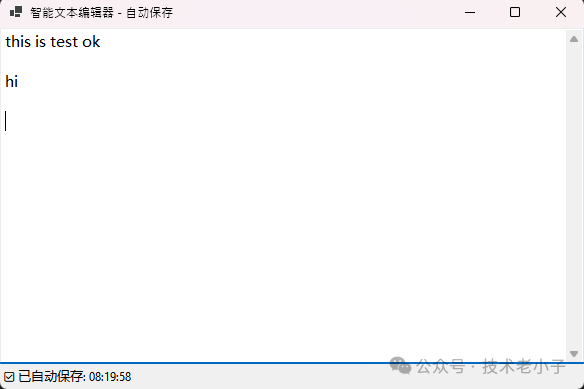
⚡ 实战应用3:自动保存管理器
在文本编辑器或者数据录入界面,自动保存功能能大大提升用户体验:
using System;
using System.Collections.Generic;
using System.ComponentModel;
using System.Data;
using System.Drawing;
using System.Linq;
using System.Text;
using System.Threading.Tasks;
using System.Windows.Forms;
using Timer = System.Windows.Forms.Timer;

namespace AppWinformTimer
{
    public partial class FrmAutoSaveTextEditor : Form
    {
        private TextBox textEditor;
        private Label statusLabel;
        private Timer autoSaveTimer;
        private Timer statusTimer;
        private string lastSavedContent = "";

        public FrmAutoSaveTextEditor()
        {
            InitializeComponent();
            InitializeUI();
            SetupAutoSave();
        }

        private void InitializeUI()
        {
            this.Text = "智能文本编辑器 - 自动保存";
            this.Size = new Size(600, 400);

            textEditor = new TextBox
            {
                Multiline = true,
                Dock = DockStyle.Fill,
                Font = new Font("Microsoft YaHei", 11F),
                ScrollBars = ScrollBars.Vertical
            };
            textEditor.TextChanged += TextEditor_TextChanged;

            statusLabel = new Label
            {
                Dock = DockStyle.Bottom,
                Height = 25,
                BackColor = SystemColors.Control,
                TextAlign = ContentAlignment.MiddleLeft,
                Text = "就绪"
            };

            this.Controls.AddRange(new Control[] { textEditor, statusLabel });
        }

        private void SetupAutoSave()
        {
            // 自动保存定时器:每30秒检查一次
            autoSaveTimer = new Timer { Interval = 30000 };
            autoSaveTimer.Tick += AutoSaveTimer_Tick;
            autoSaveTimer.Start();

            // 状态显示定时器:用于清除状态消息
            statusTimer = new Timer { Interval = 3000 };
            statusTimer.Tick += (s, e) =>
            {
                statusLabel.Text = "就绪";
                statusTimer.Stop();
            };
        }

        private void TextEditor_TextChanged(object sender, EventArgs e)
        {
            // 🎯 智能判断:只有内容确实改变时才重启定时器
            if (textEditor.Text != lastSavedContent)
            {
                autoSaveTimer.Stop();
                autoSaveTimer.Start(); // 重新开始计时
            }
        }

        private void AutoSaveTimer_Tick(object sender, EventArgs e)
        {
            if (textEditor.Text != lastSavedContent && !string.IsNullOrEmpty(textEditor.Text))
            {
                SaveContent();
            }
        }

        private void SaveContent()
        {
            try
            {
                string fileName = $"autosave_{DateTime.Now:yyyyMMdd_HHmmss}.txt";
                string filePath = Path.Combine(Environment.GetFolderPath(Environment.SpecialFolder.MyDocuments), fileName);

                File.WriteAllText(filePath, textEditor.Text);
                lastSavedContent = textEditor.Text;

                ShowStatus($"✅ 已自动保存: {DateTime.Now:HH:mm:ss}");
            }
            catch (Exception ex)
            {
                ShowStatus($"❌ 保存失败: {ex.Message}");
            }
        }

        private void ShowStatus(string message)
        {
            statusLabel.Text = message;
            statusTimer.Stop();
            statusTimer.Start();
        }

        protected override void OnFormClosed(FormClosedEventArgs e)
        {
            // 关闭前最后保存一次
            if (textEditor.Text != lastSavedContent && !string.IsNullOrEmpty(textEditor.Text))
            {
                SaveContent();
            }

            autoSaveTimer?.Dispose();
            statusTimer?.Dispose();
            base.OnFormClosed(e);
        }
    }
}
🚨 开发中的常见陷阱与解决方案
⚠️ 陷阱1:UI线程阻塞
问题:在Tick事件中执行耗时操作会冻结界面
// ❌ 错误示例
private void Timer_Tick(object sender, EventArgs e)
{
    // 这会阻塞UI线程
    Thread.Sleep(5000);
    label.Text = "更新完成";
}

// ✅ 正确做法
private async void Timer_Tick(object sender, EventArgs e)
{
    timer.Stop(); // 先停止定时器

    try
    {
        await Task.Run(() =>
        {
            // 耗时操作在后台线程执行
            DoHeavyWork();
        });

        // UI更新回到主线程
        label.Text = "更新完成";
    }
    finally
    {
        timer.Start(); // 重新启动定时器
    }
}
⚠️ 陷阱2:精度误解
WinForms Timer的精度限制在15-55毫秒,对于高精度需求要选择合适的Timer类型:
// 对比三种Timer的特点
public class TimerComparison
{
    // 1. WinForms Timer - UI友好,精度一般,这个最简单了
    private System.Windows.Forms.Timer uiTimer = new System.Windows.Forms.Timer();

    // 2. System.Timers.Timer - 高精度,需要线程同步,这个是我常用的
    private System.Timers.Timer precisionTimer = new System.Timers.Timer();

    // 3. Threading Timer - 最高性能,最复杂,这个偶尔会用
    private System.Threading.Timer threadingTimer;

    public void DemonstrateUsage()
    {
        // UI界面更新 → 使用 WinForms Timer
        uiTimer.Interval = 1000;
        uiTimer.Tick += (s, e) => UpdateUI();

        // 后台数据处理 → 使用 System.Timers.Timer
        precisionTimer.Interval = 100;
        precisionTimer.Elapsed += (s, e) => ProcessData();
        precisionTimer.AutoReset = true;

        // 高性能场景 → 使用 Threading Timer
        threadingTimer = new System.Threading.Timer(
            callback: _ => HighPerformanceTask(),
            state: null,
            dueTime: 0,
            period: 50
        );
    }
}
⚠️ 陷阱3:资源泄漏
// ✅ 正确的资源管理模式
public class ProperTimerDisposal : Form, IDisposable
{
    private Timer timer;
    private bool disposed = false;

    protected override void Dispose(bool disposing)
    {
        if (!disposed && disposing)
        {
            timer?.Dispose();
            disposed = true;
        }
        base.Dispose(disposing);
    }
}
🎯 高级应用技巧
🔥 技巧1:动态调整定时间隔
private void AdaptiveTimer()
{
    // 根据系统负载动态调整
    if (SystemIsUnderLoad())
    {
        timer.Interval = 2000; // 降低频率
    }
    else
    {
        timer.Interval = 500;  // 恢复正常频率
    }
}
🔥 技巧2:Timer链式调用
// 实现复杂的定时序列
private void StartTimerSequence()
{
    var sequence = new Timer[]
    {
        CreateTimer(1000, () => ShowMessage("3")),
        CreateTimer(1000, () => ShowMessage("2")),
        CreateTimer(1000, () => ShowMessage("1")),
        CreateTimer(1000, () => ShowMessage("开始!"))
    };

    ExecuteSequence(sequence, 0);
}
阅读原文:原文链接
该文章在 2025/12/27 11:32:56 编辑过






 400 186 1886