🤔 你是否遇到过这样的问题?
开发WinForms应用时,用户总是抱怨文件选择界面不够友好?保存文件时缺少必要的提醒?多文件选择功能实现起来很复杂?
今天,我们就来彻底解决这些让C#开发者头疼的文件操作问题!通过掌握OpenFileDialog和SaveFileDialog这两个强大的组件,让你的应用用户体验瞬间提升一个档次。
🎯 为什么文件操作对话框如此重要?
在Windows应用开发中,文件操作是最常见的需求之一。无论是打开配置文件、导入数据还是导出报告,标准化的文件选择界面不仅能提升用户体验,还能避免路径输入错误等常见问题。
OpenFileDialog和SaveFileDialog的三大优势:
- • ✅ 封装了复杂的Windows API,使用简单
🔥 实战技巧一:智能文件过滤,提升用户体验
很多开发者只会设置基础的文件过滤,但合理的过滤设置能大大提升用户体验:
using System;
using System.Collections.Generic;
using System.Linq;
using System.Text;
using System.Threading.Tasks;

namespace AppWinformFileDialog
{
    public class SmartFileFilter
    {
        public void OpenWithSmartFilter()
        {
            using (OpenFileDialog openDialog = new OpenFileDialog())
            {
                // 关键技巧:设置多层次的文件过滤
                openDialog.Filter = "图片文件 (*.jpg;*.png;*.gif)|*.jpg;*.png;*.gif|" +
                                   "文档文件 (*.txt;*.doc;*.pdf)|*.txt;*.doc;*.pdf|" +
                                   "所有文件 (*.*)|*.*";

                // 默认选择第一个过滤器
                openDialog.FilterIndex = 1;

                // 设置友好的标题
                openDialog.Title = "选择要处理的图片文件";

                // 记住用户的选择目录
                openDialog.RestoreDirectory = true;

                if (openDialog.ShowDialog() == DialogResult.OK)
                {
                    string selectedFile = openDialog.FileName;
                    MessageBox.Show($"已选择文件:{selectedFile}");
                }
            }
        }
    }
}
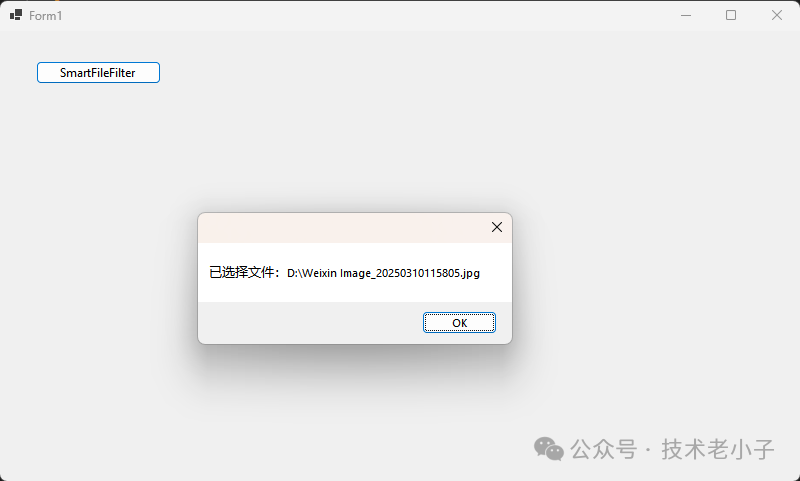
💡 实用提示:
- •
FilterIndex = 1:默认选中第一个过滤器,用户体验更好 - • 过滤器格式:
显示名称|匹配模式,多个扩展名用分号分隔 - •
RestoreDirectory = true:下次打开对话框时记住用户的选择
🚀 实战技巧二:多文件选择的正确姿势
处理批量文件时,多选功能必不可少。但很多开发者不知道如何正确处理多选结果:
using System;
using System.Collections.Generic;
using System.Linq;
using System.Text;
using System.Threading.Tasks;

namespace AppWinformFileDialog
{
    public class MultiFileSelector
    {
        public void SelectMultipleFilesWithValidation()
        {
            using (OpenFileDialog openDialog = new OpenFileDialog())
            {
                // 启用多选模式
                openDialog.Multiselect = true;

                openDialog.Filter = "Excel文件 (*.xlsx;*.xls)|*.xlsx;*.xls|CSV文件 (*.csv)|*.csv";
                openDialog.Title = "选择要合并的数据文件(支持多选)";
                openDialog.InitialDirectory = Environment.GetFolderPath(Environment.SpecialFolder.Desktop);

                if (openDialog.ShowDialog() == DialogResult.OK)
                {
                    string[] selectedFiles = openDialog.FileNames;

                    // 添加文件数量验证
                    if (selectedFiles.Length > 10)
                    {
                        MessageBox.Show("一次最多只能选择10个文件,请重新选择!", "提示",
                                       MessageBoxButtons.OK, MessageBoxIcon.Warning);
                        return;
                    }

                    // 处理选中的文件
                    ProcessMultipleFiles(selectedFiles);
                }
            }
        }

        private void ProcessMultipleFiles(string[] files)
        {
            foreach (stringfilein files)
            {
                // 检查文件是否存在(多选时的安全检查)
                if (File.Exists(file))
                {
                    Console.WriteLine($"处理文件:{Path.GetFileName(file)}");
                    // 添加你的文件处理逻辑
                }
            }
        }
    }
}
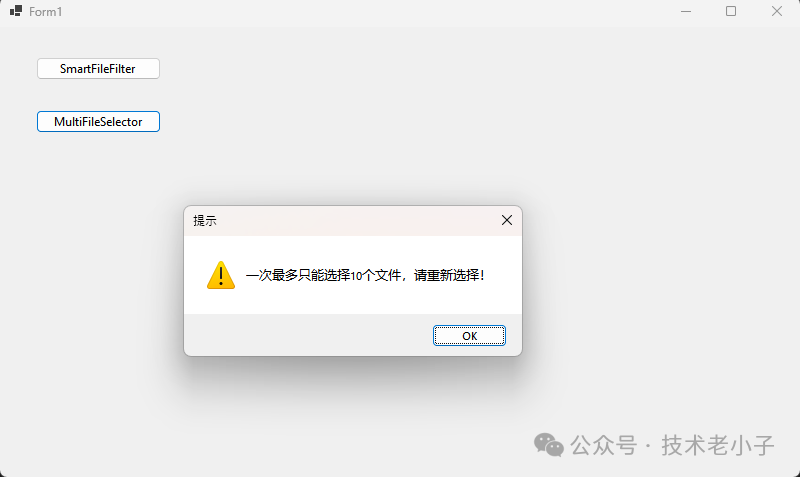
⚠️ 常见坑点提醒:
- • 多选时一定要验证文件数量,避免用户选择过多文件导致程序卡顿
- • 使用
FileNames属性获取多个文件,而不是FileName - • 处理前要检查文件是否还存在(用户可能在选择后删除了文件)
💾 实战技巧三:SaveFileDialog的高级应用
保存文件时,用户体验同样重要。这里分享几个提升保存体验的技巧:
using System;
using System.Collections.Generic;
using System.Linq;
using System.Text;
using System.Threading.Tasks;

namespace AppWinformFileDialog
{
    public class AdvancedFileSaver
    {
        public void SaveFileWithSmartDefaults()
        {
            using (SaveFileDialog saveDialog = new SaveFileDialog())
            {
                // 智能默认文件名
                string defaultFileName = $"数据报告_{DateTime.Now:yyyyMMdd_HHmmss}.xlsx";
                saveDialog.FileName = defaultFileName;

                saveDialog.Filter = "Excel文件 (*.xlsx)|*.xlsx|CSV文件 (*.csv)|*.csv|PDF文件 (*.pdf)|*.pdf";
                saveDialog.Title = "导出数据报告";

                // 文件存在时提示覆盖
                saveDialog.OverwritePrompt = true;

                // 自动添加扩展名
                saveDialog.AddExtension = true;

                // 设置默认保存位置为文档文件夹
                saveDialog.InitialDirectory = Environment.GetFolderPath(Environment.SpecialFolder.MyDocuments);

                if (saveDialog.ShowDialog() == DialogResult.OK)
                {
                    string savePath = saveDialog.FileName;

                    try
                    {
                        // 根据文件扩展名选择不同的保存方式
                        string extension = Path.GetExtension(savePath).ToLower();
                        switch (extension)
                        {
                            case".xlsx":
                                SaveAsExcel(savePath);
                                break;
                            case".csv":
                                SaveAsCsv(savePath);
                                break;
                            case".pdf":
                                SaveAsPdf(savePath);
                                break;
                        }

                        MessageBox.Show($"文件已成功保存到:\n{savePath}", "保存成功",
                                       MessageBoxButtons.OK, MessageBoxIcon.Information);
                    }
                    catch (Exception ex)
                    {
                        MessageBox.Show($"保存文件时出错:{ex.Message}", "错误",
                                       MessageBoxButtons.OK, MessageBoxIcon.Error);
                    }
                }
            }
        }

        private void SaveAsExcel(string filePath) { /* 实现Excel保存逻辑 */ }
        private void SaveAsCsv(string filePath) { /* 实现CSV保存逻辑 */ }
        private void SaveAsPdf(string filePath) { /* 实现PDF保存逻辑 */ }
    }
}
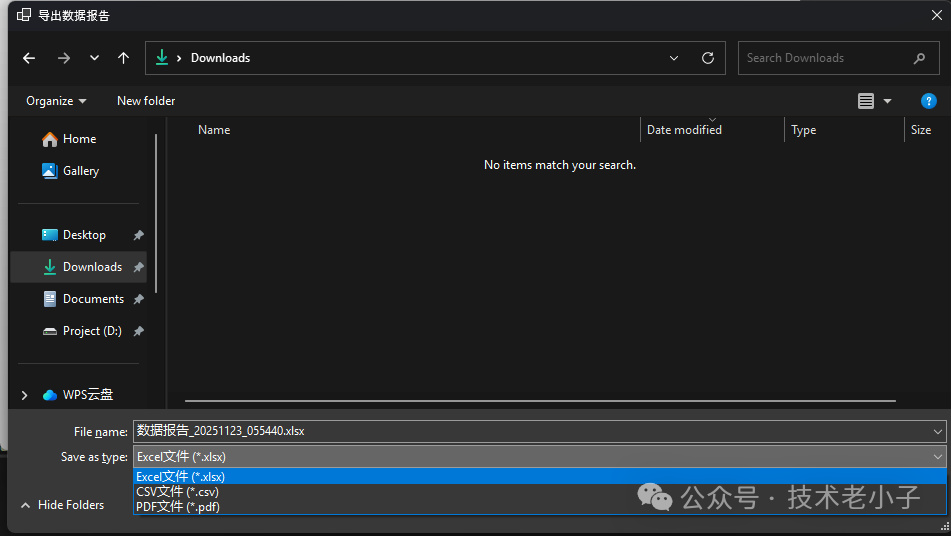
🎨 实战技巧四:自定义对话框外观与行为
让你的文件对话框更专业:
using System;
using System.Collections.Generic;
using System.IO;
using System.Linq;
using System.Text;
using System.Threading.Tasks;
using System.Windows.Forms;
using Newtonsoft.Json;

namespace AppWinformFileDialog
{
    public class CustomFileDialog
    {
        private readonly string configPath = "config.json";

        public void ShowCustomizedDialog()
        {
            using (OpenFileDialog openDialog = new OpenFileDialog())
            {
                // 自定义标题和按钮文字的效果
                openDialog.Title = "🔍 智能文档分析器 - 选择分析文件";

                // 设置初始目录为最近使用的项目文件夹
                string recentPath = GetLastUsedPath();
                if (!string.IsNullOrEmpty(recentPath) && Directory.Exists(recentPath))
                {
                    openDialog.InitialDirectory = recentPath;
                }

                // 高级过滤设置
                openDialog.Filter = "支持的文档|*.txt;*.doc;*.docx;*.pdf;*.rtf|" +
                                   "纯文本文件|*.txt|" +
                                   "Word文档|*.doc;*.docx|" +
                                   "PDF文档|*.pdf";

                // 禁止用户切换到不允许的文件类型
                openDialog.CheckFileExists = true;
                openDialog.CheckPathExists = true;

                if (openDialog.ShowDialog() == DialogResult.OK)
                {
                    // 记住用户的选择
                    string selectedPath = Path.GetDirectoryName(openDialog.FileName);
                    SaveLastUsedPath(selectedPath);

                    ProcessSelectedFile(openDialog.FileName);
                }
            }
        }

        private string GetLastUsedPath()
        {
            try
            {
                if (File.Exists(configPath))
                {
                    string json = File.ReadAllText(configPath);
                    var config = JsonConvert.DeserializeObject<AppConfig>(json);
                    return config?.LastUsedPath ?? "";
                }
            }
            catch
            {
                // 忽略读取错误
            }
            return"";
        }

        private void SaveLastUsedPath(string path)
        {
            try
            {
                var config = new AppConfig { LastUsedPath = path };
                string json = JsonConvert.SerializeObject(config, Formatting.Indented);

                string directory = Path.GetDirectoryName(configPath);
                if (!Directory.Exists(directory))
                {
                    Directory.CreateDirectory(directory);
                }

                File.WriteAllText(configPath, json);
            }
            catch
            {
                // 忽略保存错误
            }
        }

        private void ProcessSelectedFile(string filePath)
        {
            // 文件处理逻辑
            Console.WriteLine($"开始处理文件:{filePath}");
        }
    }

    publicclassAppConfig
    {
        publicstring LastUsedPath { get; set; } = "";
    }
}
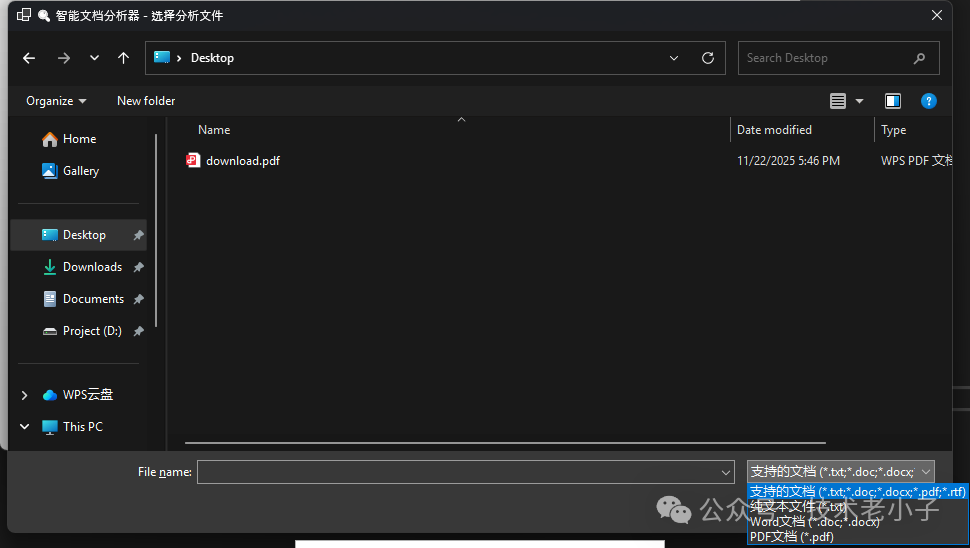
⚡ 实战技巧五:异步文件操作与进度显示
大文件处理时,用户体验优化:
using System;
using System.Collections.Generic;
using System.Linq;
using System.Text;
using System.Threading.Tasks;

namespace AppWinformFileDialog
{
    public class AsyncFileProcessor
    {
        public async void ProcessLargeFileAsync()
        {
            using (OpenFileDialog openDialog = new OpenFileDialog())
            {
                openDialog.Filter = "大文件 (*.zip;*.rar;*.7z)|*.zip;*.rar;*.7z";
                openDialog.Title = "选择要处理的压缩文件";

                if (openDialog.ShowDialog() == DialogResult.OK)
                {
                    string filePath = openDialog.FileName;
                    FileInfo fileInfo = new FileInfo(filePath);

                    // 大文件处理前的提示
                    if (fileInfo.Length > 100 * 1024 * 1024) // 100MB
                    {
                        var result = MessageBox.Show(
                            $"选择的文件较大({fileInfo.Length / (1024 * 1024):F1}MB)," +
                            "处理可能需要一些时间,是否继续?",
                            "确认处理", MessageBoxButtons.YesNo, MessageBoxIcon.Question);

                        if (result == DialogResult.No) return;
                    }

                    // 异步处理文件
                    await ProcessFileAsync(filePath);
                }
            }
        }

        private async Task ProcessFileAsync(string filePath)
        {
            // 这里可以添加进度条显示
            // 异步文件处理逻辑
            await Task.Run(() =>
            {
                // 模拟文件处理
                Thread.Sleep(3000);
            });

            MessageBox.Show("文件处理完成!", "成功",
                           MessageBoxButtons.OK, MessageBoxIcon.Information);
        }
    }
}
📚 最佳实践总结
基于多年的C#开发经验,我总结了使用文件操作对话框的三大黄金法则:
🎯 法则一:用户体验优先
🛡️ 法则二:健壮性保障
- • 异常处理:始终使用try-catch包装文件操作
⚡ 法则三:性能优化
🎉 写在最后
文件操作对话框看似简单,但其中的细节决定了用户体验的好坏。通过掌握这5个实战技巧,你的WinForms应用将在文件处理方面脱颖而出。
阅读原文:原文链接
该文章在 2025/12/15 9:40:16 编辑过






 400 186 1886